Canva for Small Business: How to Create Professional Marketing Visuals Without a Designer
Feb 16, 2026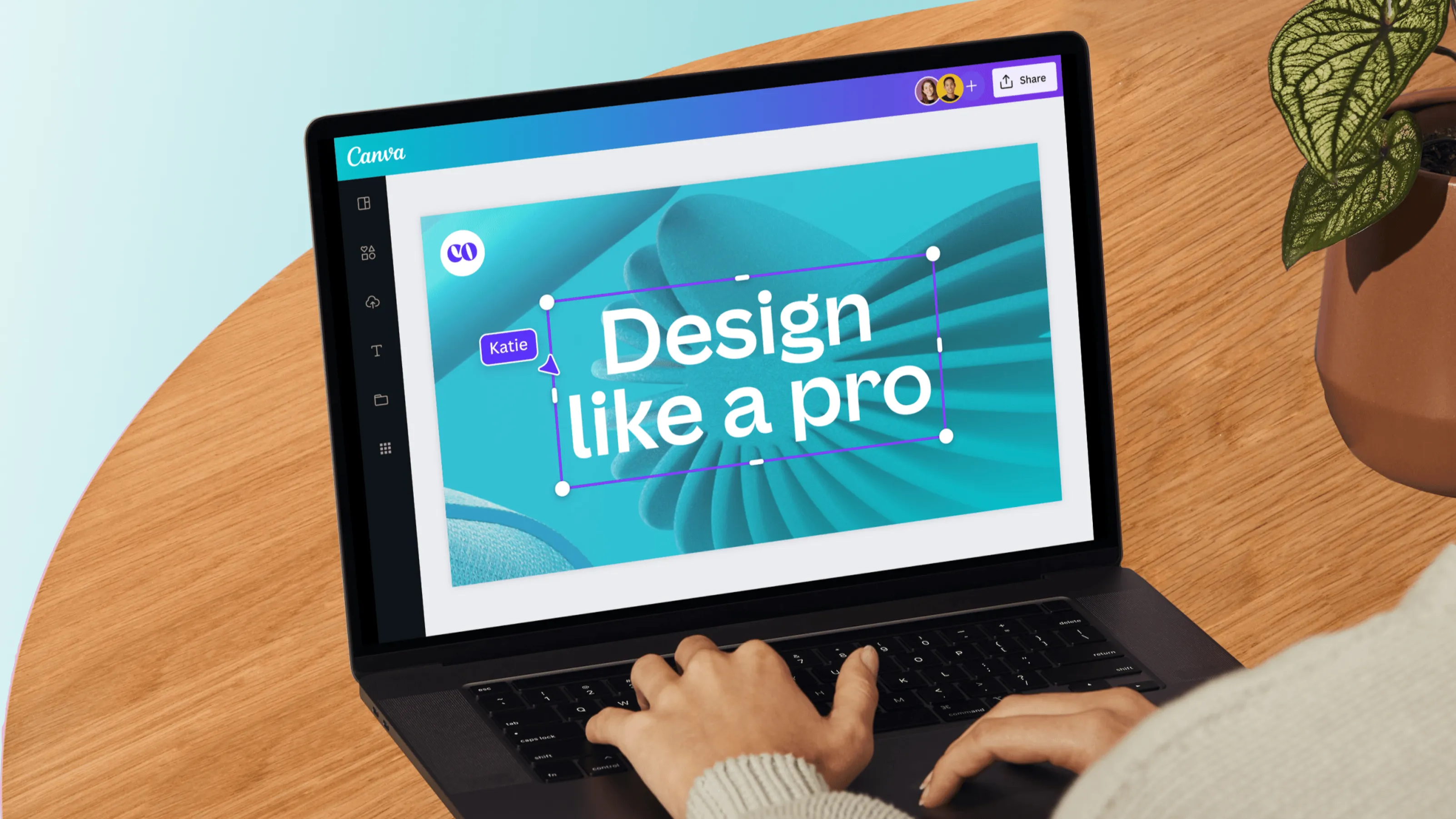
Last updated: April 2026 · Written by 20 Minute Marketing · 9 min read
Five years ago, creating professional-looking marketing visuals for your business required either hiring a graphic designer or spending months learning Photoshop. Today, a small business owner with no design experience can produce social media graphics, presentations, flyers, email headers, and ad creatives in the time it takes to drink a coffee — using Canva.
Canva is now used by more than 170 million people worldwide, and it has become the default design tool for Australian small businesses for a simple reason: it removes the technical barrier between your ideas and professional output. You do not need to understand kerning, colour theory, or file formats. You start from a template, add your content and branding, and publish. For businesses that cannot afford a designer but cannot afford to look unprofessional, it fills a critical gap.
This guide covers not just how to use Canva's features, but specifically how to use it strategically — so your output looks consistent, on-brand, and genuinely useful rather than like something from a design amateur who found a template.
Free vs. Canva Pro: What Do You Actually Need?
📘 Want the full picture? Read our the practical 2026 guide — the complete pillar guide this article is part of.
Canva's free plan is genuinely substantial. It includes access to over 250,000 templates, basic drag-and-drop editing, and the ability to publish to social media directly. For a business just starting out with visual content creation, the free plan is more than sufficient.
Canva Pro (approximately AUD $22/month) adds features that become progressively more valuable as your output volume and brand consistency needs grow:
- Brand Kit: Store your logo, brand colours, and fonts in one place so every design automatically uses your brand identity.
- Background Remover: Remove image backgrounds with one click — essential for product photos and professional headshots.
- Magic Resize: Automatically resize any design to different formats — Instagram square, Facebook cover, A4 flyer, email header — without rebuilding it from scratch.
- Premium Templates and Elements: Access to the full template library, significantly larger than the free tier.
- Content Scheduler: Schedule social media posts directly from Canva to Facebook, Instagram, and LinkedIn.
Our recommendation: start with the free plan. If you find yourself regularly running into the limits of the free templates or manually recreating designs in different sizes, upgrade to Pro. The time it saves in resizing alone typically justifies the cost of the Pro Plan within the first week.
Setting Up Your Brand Kit First
The single most important thing you can do before creating any design is to set up your Brand Kit (available on Pro) or, on the free plan, to create a master template that stores your brand colours and fonts. This ensures every piece of content you create reinforces the same visual identity rather than gradually drifting into inconsistency.
Your Brand Kit needs three things:
- Your logo: In PNG format with a transparent background. If you do not have this, your designer or Canva's own background removal tool can create it.
- Your brand colours: The exact hex codes of your primary and secondary brand colours. If you are not sure what these are, our Small Business Branding Guide walks through how to establish a complete brand framework including colours.
- Your brand fonts: Your heading font and your body font. Canva has hundreds of free fonts — pick two that reflect your brand personality and use them exclusively across all designs.
With a Brand Kit established, every template you open in Canva can be recoloured to your brand palette in seconds. This is what transforms Canva from a generic template tool into a genuine brand asset.
The Six Templates Every Small Business Needs
Rather than starting from scratch for every piece of content, build a set of master templates that you reuse and update. This dramatically reduces the time cost of content creation and ensures consistency. The six you need most:
1. Social Media Post Template (1:1 square)
Your workhorse. Used for Facebook and Instagram feed posts. Create one branded template with your logo, a space for a headline, a space for a photo or graphic, and a subtle background pattern or colour block. Every post you create adapts this template rather than starting from a blank canvas.
2. Instagram Story / Facebook Story Template (9:16 vertical)
Stories are one of the highest-engagement formats on both platforms and require a different aspect ratio to feed posts. Use Magic Resize (Pro) to convert your square template automatically, or create a separate vertical template.
3. Google Business Profile Post Template
GBP posts are often the least-designed piece of content small businesses publish, despite appearing in Google search results. A simple branded template with your logo, a clear message, and a photo makes these posts far more professional and more likely to drive action. Pairs directly with the advice in our Google Business Profile guide.
4. Testimonial / Review Graphic
Turning text reviews into branded graphics is one of the highest-converting things you can do with Canva. A well-designed testimonial post — customer name, photo (with permission), star rating, quote — performs significantly better on social media than a plain text screenshot of a Google review.
5. Email Header
Most email platforms allow you to upload a custom header image. A clean, branded header makes even simple plain-text emails look professional and reinforces brand recognition with every send.
6. Flyer or Service Overview (A4 or DL)
For businesses that still use physical materials — at trade shows, in letterboxes, in waiting rooms — a professionally designed flyer template that can be quickly updated for different promotions or services.
Canva's AI Features: What's Worth Using
Canva has integrated a substantial range of AI tools over the past two years. The ones that genuinely save time for small businesses:
- Magic Write: Generates draft copy for headlines, captions, and descriptions based on a brief. Useful as a starting point, particularly if copywriting is not your strength. Always personalise and edit the output — AI-generated copy needs your voice and local specificity to convert.
- Text to Image: Generates custom images from text descriptions. Excellent for creating unique visual backgrounds and avoiding stock photo clichés. Our guide to AI image generation for small business covers how to get the most from these tools.
- Magic Eraser: Removes unwanted objects from photos. Saves the cost of reshooting a photo where something unfortunate appeared in the background.
- Presentations with AI: Generates an entire presentation slide deck from a text prompt. Useful for creating client proposals or pitch decks as a first draft.
According to Canva's own newsroom, AI-assisted design tools are now used in over 40% of Canva Pro designs. The businesses getting the most value are those using AI features as a starting point and speed multiplier, not as a replacement for thought and personalisation.
The 20-Minute Content Batching Workflow
The most efficient way to use Canva is not to open it every time you need a graphic. It is to batch your content creation: set aside one session every two weeks and create all of the content you will need for that period in one sitting.
- Open your master social post template.
- Duplicate it 6–8 times (one for each post you are planning).
- Update the headline, photo, and caption for each post.
- Schedule directly from Canva (Pro) or download and schedule through your chosen social platform.
- Done. Two weeks of visual content created in under an hour.
This is the approach that makes the 20-minute marketing system work in practice. You are not creating every day — you are creating consistently, in batches, and then publishing on autopilot.
Consistency in visual branding builds the recognition that makes people feel your business is established and trustworthy — before they have read a single word of your copy.
Design, Content & Tools — Covered in the Deluxe Digital Marketing Course
Our Digital Marketing Courses includes a dedicated lesson on Canva design for small business, plus modules on video editing with CapCut, AI content tools, and a full 101 free marketing tools guide. Everything you need to create professional marketing content — without a designer or a big budget.
Explore the Deluxe Course →Get the complete digital marketing system built for Australian small business.
Browse Essentials Modules →Practical marketing, not theory.
20 Minute Marketing is the digital marketing course built for owners who need results, not lectures — short lessons, immediate actions, real outcomes.
Start Your Marketing Journey →
Built for time-poor Australian small business owners.
Learn digital marketing in 20 minutes a day
Self-paced courses from someone who runs digital for two national brands. Build skills you can show an employer or a client.