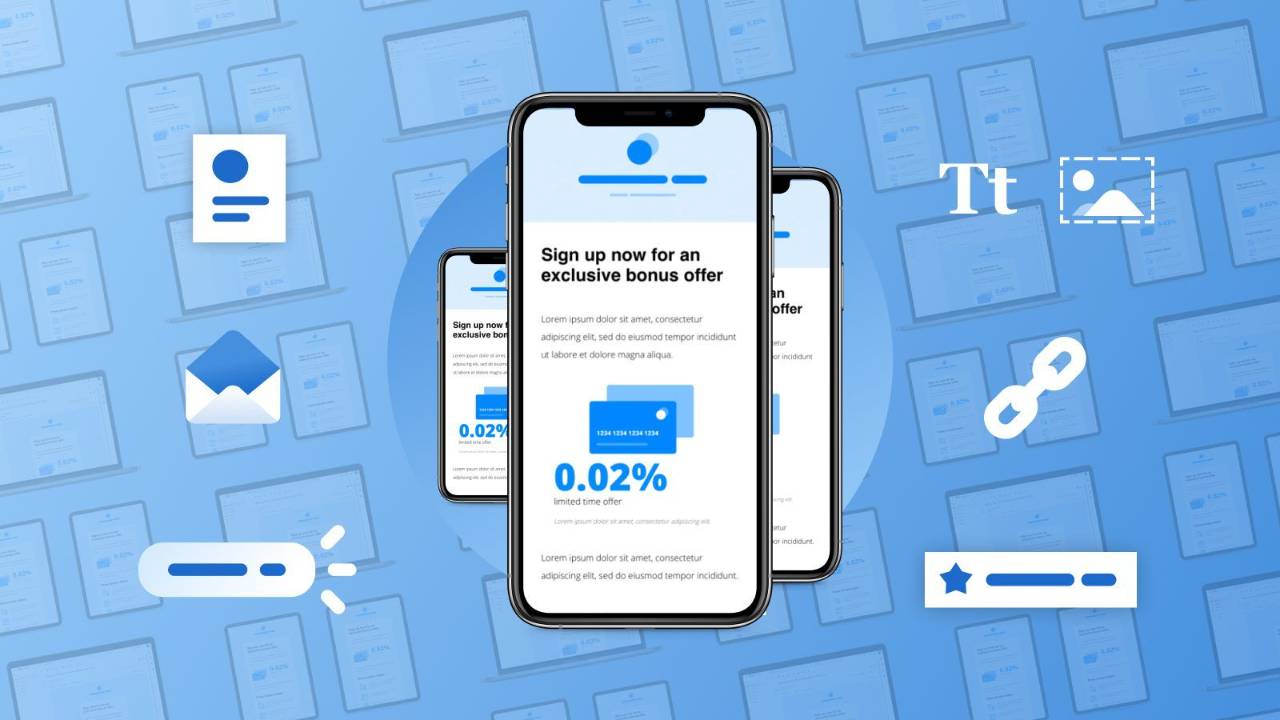
Mobile Email Design for Small Business: How to Create Emails That Look Perfect on Every Screen

email marketing Mar 28, 2026
Mobile First Email Design Best Practice

More than half of all emails are now opened on a mobile device. According to Litmus's email analytics data, mobile email opens have consistently accounted for over 40% of all opens since 2020, with some industries seeing mobile rates above 60%. If your emails look great on a desktop screen but fall apart on a phone, you are losing more than half your audience before they even read a word.

For small business owners, this is not a design problem — it is a revenue problem. An email that renders poorly on mobile gets deleted in seconds. The subscriber does not squint, zoom, or switch to their laptop to try again. They swipe and move on. Your carefully crafted offer, your subject line that earned the open, your call to action — all wasted because the email was not designed for the screen it was actually viewed on.

The good news is that mobile-friendly email design does not require a graphic designer or custom HTML coding. Every major email platform offers responsive templates that adapt to screen sizes automatically. The key is understanding what makes a mobile email work and avoiding the common mistakes that break them.


The Single-Column Rule

Desktop emails often use multi-column layouts — a main content area with a sidebar, or two products displayed side by side. On a mobile screen, these layouts collapse unpredictably. Sidebars stack below the main content where nobody scrolls to see them. Two-column product grids shrink to unreadable sizes.

The fix is to design every email as a single column. One column of content, flowing from top to bottom, reading naturally on any screen width. This does not mean your emails need to be plain or boring. It means your visual hierarchy — what the reader sees first, second, and third — should work in a vertical flow rather than a horizontal spread.

When you look at emails from successful small businesses and major brands alike, the vast majority use single-column layouts. It is the industry standard because it works universally across devices, email clients, and screen sizes. Campaign Monitor's email design guidelines confirm that single-column layouts consistently outperform multi-column designs in both engagement and rendering reliability.


Font Sizes That Actually Work on Mobile

This is where most small business emails fail quietly. A font size that looks perfectly readable at 14 pixels on a desktop monitor becomes a squinting exercise on a phone screen. Mobile email design requires larger fonts than you might instinctively choose.

For body text, use a minimum of 16 pixels. This is the size that iOS and Android render without forcing the user to zoom. For headlines, use 22 to 28 pixels depending on the length of the headline. For pre-header text and fine print, never go below 14 pixels. For button text, use 16 to 18 pixels with enough padding around the text that the button is easy to tap.

Line spacing matters too. Set your line height to at least 1.5 times your font size. So if your body text is 16 pixels, your line height should be at least 24 pixels. This creates breathing room between lines that makes reading on a small screen significantly more comfortable.


Designing Tappable Calls to Action

On a desktop, clicking a text link is easy because a mouse cursor is precise. On a mobile device, a finger is imprecise and needs a much larger target. If your call to action is a small text link buried in a paragraph, mobile users will struggle to tap it accurately — and many will not bother trying.

Use buttons instead of text links for your primary call to action. Make the button at least 44 pixels tall — this is Apple's recommended minimum touch target size. Use a width of at least 200 pixels or make it full-width to span the entire email column. Add 10 to 15 pixels of padding inside the button so the text does not crowd the edges.

Place your primary call to action within the first screen of content — meaning the subscriber should see it without scrolling on a mobile device. If your email is long, repeat the call to action at the bottom as well. Limit each email to one primary CTA. Multiple competing buttons confuse readers and reduce click-through rates. If you absolutely need secondary actions, make them text links rather than buttons so the visual hierarchy stays clear.

This principle of focused action applies to all your customer-facing offers — one clear action always outperforms a cluttered set of options.


Image Best Practices for Mobile Email

Images are essential for creating visually appealing emails, but they introduce several mobile-specific challenges. The first challenge is load time. A subscriber on a mobile network with patchy reception will abandon an email that takes more than a few seconds to load. Compress every image before uploading it to your email platform. Aim for file sizes under 200KB per image and under 800KB total for the entire email.

The second challenge is image blocking. Some email clients block images by default until the subscriber manually chooses to display them. If your email is entirely image-based — a single large graphic with text baked into the image — these subscribers see a blank email. Always use live text for your key messages and calls to action, with images as supporting visual elements rather than the primary content carrier.

The third challenge is sizing. Images wider than the mobile screen create horizontal scrolling, which breaks the reading experience. Set your images to a maximum width of 600 pixels and use percentage-based widths so they scale down responsively on smaller screens. Always include descriptive alt text on every image so subscribers with images blocked still understand what the image was meant to convey.

Use tools like TinyPNG or your email platform's built-in image compression to optimise file sizes. A fast-loading email with properly sized images respects your subscriber's time and data, which is especially important for the small business audience you are most likely targeting.


Pre-Header Text: Your Secret Mobile Weapon

Pre-header text is the short preview that appears next to or below the subject line in a mobile inbox. On a phone screen, this preview text is often the deciding factor in whether someone opens or scrolls past your email. Yet most small businesses either leave it blank — which causes the email client to pull random text from the email body — or ignore it entirely.

Write your pre-header text as a deliberate companion to your subject line. If your subject line creates curiosity, your pre-header should amplify it. For example — subject line: "The one thing killing your Google ranking" paired with pre-header: "And the 5-minute fix most small businesses miss." Together, they create a one-two punch that drives opens.

Keep your pre-header between 40 and 130 characters. Anything shorter risks being padded with random body text by the email client. Anything longer gets cut off on most mobile screens. Every email platform lets you set pre-header text separately from the email body — look for it in the campaign settings or email header section when building your campaign.


Dark Mode Compatibility

An increasing number of mobile users have dark mode enabled on their devices, which inverts the colour scheme of emails. A beautifully designed email with black text on a white background can become white text on a black background — and if your logo has a transparent background, it may disappear entirely.

To design for dark mode, avoid using images with transparent backgrounds for critical elements like your logo. Use a solid background colour behind logos and key graphics. Test your emails in dark mode before sending — most email preview tools and platforms now include a dark mode preview option. Email on Acid's dark mode guide provides detailed technical advice on building emails that look good in both light and dark modes.

Choose colours with sufficient contrast that work in both modes. Pure white backgrounds with pure black text flip cleanly. But light grey backgrounds, pastel colours, and subtle borders can become difficult to read or invisible in dark mode. If in doubt, keep your design simple with high-contrast colour combinations.


Testing Your Emails Before Sending

Never send an email campaign without testing it on a real mobile device. Most email platforms include a preview feature that shows how your email renders on different screen sizes, but nothing replaces actually opening the email on your phone.

Send a test email to yourself and open it on your mobile device. Check that all text is readable without zooming. Verify that buttons are large enough to tap easily. Confirm that images load quickly and scale correctly. Make sure the email does not require horizontal scrolling at any point. Check that links are spaced far enough apart that you can tap one without accidentally hitting another.

If you have access to both an iPhone and an Android device, test on both. Email rendering can differ between iOS Mail, Gmail on Android, and Outlook Mobile. If your audience is predominantly on one platform, prioritise testing on that platform.

This testing discipline is one of the habits we build into every module of the 20 Minute Marketing Digital Marketing Course — because the businesses that test consistently are the ones that build subscriber trust over time.


Keeping Your Email File Size Lean

Total email file size matters more on mobile than desktop. A heavy email takes longer to download on a cellular connection, and some email clients clip emails that exceed a certain size. Gmail, for example, clips emails larger than 102KB of HTML — meaning the bottom of your email simply disappears behind a "View entire message" link that most people never click.

To keep your file size lean, avoid embedding multiple large images when one will do. Strip unnecessary HTML code if you are using a custom template. Remove any hidden content blocks that your template builder may have generated. Use web-safe fonts rather than embedding custom font files. If your email consistently exceeds 100KB, simplify the design or break the content across two separate sends.

The discipline of keeping emails lean also forces you to tighten your messaging, which almost always improves performance. A concise, focused email with one key message and one call to action outperforms a bloated email trying to cover five topics at once. This is especially true on mobile where attention spans are shorter and distractions are constant.


Responsive Design vs Mobile-First Design

Responsive design means building an email that adapts to whatever screen it is viewed on. Mobile-first design means building the email for mobile screens first and then allowing it to expand gracefully on larger screens. For small businesses, mobile-first is the better approach.

When you design mobile-first, you start with the constraints — small screen, single column, large touch targets, compressed images — and build within them. The result is an email that works perfectly on mobile and looks clean on desktop. When you design desktop-first and hope the responsive template handles the conversion, you often get compromises: buttons that are too small on mobile, text that wraps awkwardly, or images that overflow the screen.

Most email platform templates are now mobile-responsive by default, but the way you populate those templates matters. Always preview your email on mobile before desktop, and make design decisions based on how it looks on the small screen first. If you need to choose between something looking slightly better on desktop or significantly better on mobile, always choose mobile. That is where the majority of your opens are happening. This strategic approach to email design fits within the broader marketing framework we outline in our five pillars of digital marketing guide.


The Mobile Email Pre-Send Checklist

Use this checklist before every email send to catch the most common mobile issues. Is the layout single-column? Is body text at least 16 pixels? Are headlines at least 22 pixels? Is the primary CTA a button at least 44 pixels tall? Is the button visible without scrolling on mobile? Are all images compressed under 200KB each? Do all images have alt text? Is the total email file size under 100KB of HTML? Is the pre-header text written and between 40 and 130 characters? Have you tested on a real mobile device? Have you checked dark mode rendering?

Print this checklist or save it as a note on your phone. Running through it takes less than two minutes and prevents the mistakes that silently erode your email performance.


Your 20-Minute Action Plan

In the first five minutes, open your most recent email campaign in your email platform and switch to the mobile preview. Note any issues — text too small, images overflowing, buttons too narrow, missing pre-header text.

In the next ten minutes, create a new email template based on the rules above: single column, 16-pixel body text, full-width CTA button, compressed images, and deliberate pre-header text. Save this as your default template so every future campaign starts from a mobile-optimised foundation.

In the final five minutes, send a test of this template to your own phone. Open it, tap the button, scroll through the content, and confirm everything works. Check it in dark mode if your phone supports it.

You now have a mobile-first email template that will serve you for every campaign going forward. No more guessing, no more broken layouts, no more lost subscribers. For a complete library of templates and design walkthroughs, explore our full course range where mobile-optimised email design is just one of dozens of practical skills we teach Australian small business owners.

You'll never need a Marketing Agency again!

Digital Marketing Courses that teach you more than an Agency ever could (or would!)

 

Find a Digital Marketing Course for your business